PDF or Word? Follow the Application’s File Instructions
Use the file format the application requests. If the application accepts PDF and Word without preferring either, choose a clean, readable PDF for a stable document; choose Word when the employer expressly requests it or the process needs an editable file. Then check the uploaded file and any information the portal extracts before submitting.
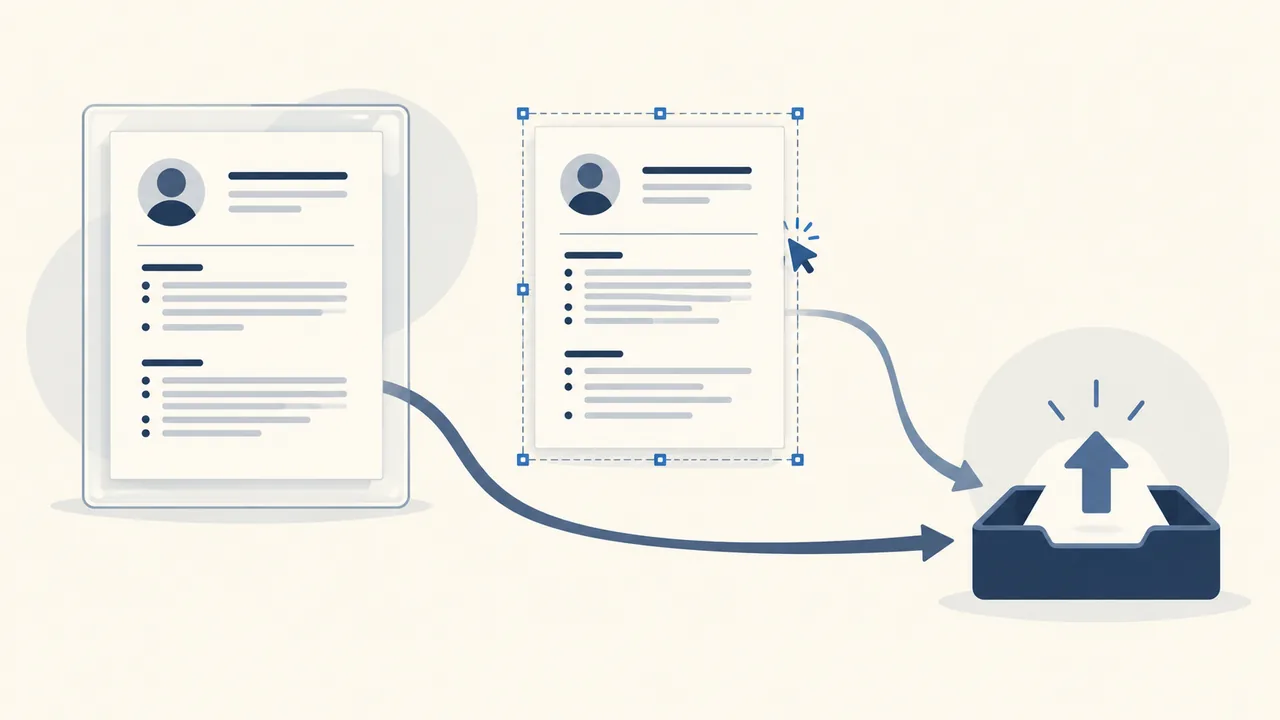
The application’s instructions outrank general advice
The best resume format is the one the specific application asks you to submit. Treat a portal’s instructions as a requirement, not a suggestion to override with a general rule about PDF or Word.
If a job posting says “PDF only,” upload a PDF. If it says “Word document,” upload a Word file, usually .docx unless the portal specifies another extension. If it says both are accepted, either format is eligible for that upload, but you still have a choice to make. If it says nothing, check the upload field, its help text, and any application FAQ before deciding.
This order matters because “the portal accepts this file” and “the employer wants this file” are not identical claims. A system may accept several types of documents while a particular employer or job has its own preferences. Greenhouse, for example, documents .doc, .docx, .pdf, .rtf, and .txt as candidate-upload types for its product. That support list explains what that system can accept; it does not establish one format as universally preferred by employers. Greenhouse’s supported-upload guidance
Use this decision order:
- Follow an explicit file instruction. The employer’s requested format wins.
- Follow the portal’s stated preference. A request such as “PDF preferred” is meaningful even if Word is also accepted.
- If both are accepted without preference, use a clean PDF by default. It is usually the better hand-off when you want the recipient to see a fixed document rather than an editable draft.
- Use Word when the process needs an editable document. This is the strongest reason to choose Word over the default.
- If the portal rejects your choice, follow its error guidance and retry. Do not repeatedly upload a format the system says it cannot process.
A format choice cannot repair inaccurate content, unreadable layout, missing information, or a broken upload. It is one practical decision in a larger submission check. For more on checking the file itself, see how to check your resume PDF before uploading it.
Decision table: PDF or Word when both seem possible?
When a job application accepts PDF and Word without stating a preference, choose PDF for a finished, readable document. Choose Word when the employer explicitly requests an editable file or tells you to make changes in the document.
| What the application says or does | What to upload | Why |
|---|---|---|
| “PDF only” | The instruction is explicit. | |
| “Word document only” | .docx or the named Word format | The instruction is explicit. Use the extension the portal asks for. |
| “PDF preferred; Word accepted” | The employer has stated a preference. | |
| “PDF or Word” with no preference | A clean PDF, if it passes your checks | It is a useful default for a finished document. |
Upload field lists PDF and .docx, with no other guidance | A clean PDF, if the portal accepts it | A list of supported file types is not the same as a preference. |
| Recruiter asks you to edit the resume in Word | Word | The workflow requires an editable source. |
| Employer sends a Word template to complete | The completed Word file, unless the instructions say otherwise | The requested template is part of the process. |
| Upload fails with one format and the portal offers a format-specific fix | Follow the error message; try the other accepted format if needed | The portal’s actual response matters more than a generic rule. |
| No format guidance and no visible list of accepted types | Check the job post, portal help, or employer contact; if time is short, use a clean PDF if upload works | Avoid guessing when the application gives you a way to verify. |
The table is a decision aid, not a claim that every application system behaves the same way. Upload requirements can be set for a specific job or employer. Read the field in front of you, not only a general help page for a software platform.
Also distinguish the document’s format from the content’s quality. A Word file is not automatically easier for a system to read. A PDF is not automatically polished or readable. Both can contain errors, awkward line breaks, missing text, or a layout that becomes difficult to inspect. Check the file you are actually sending.
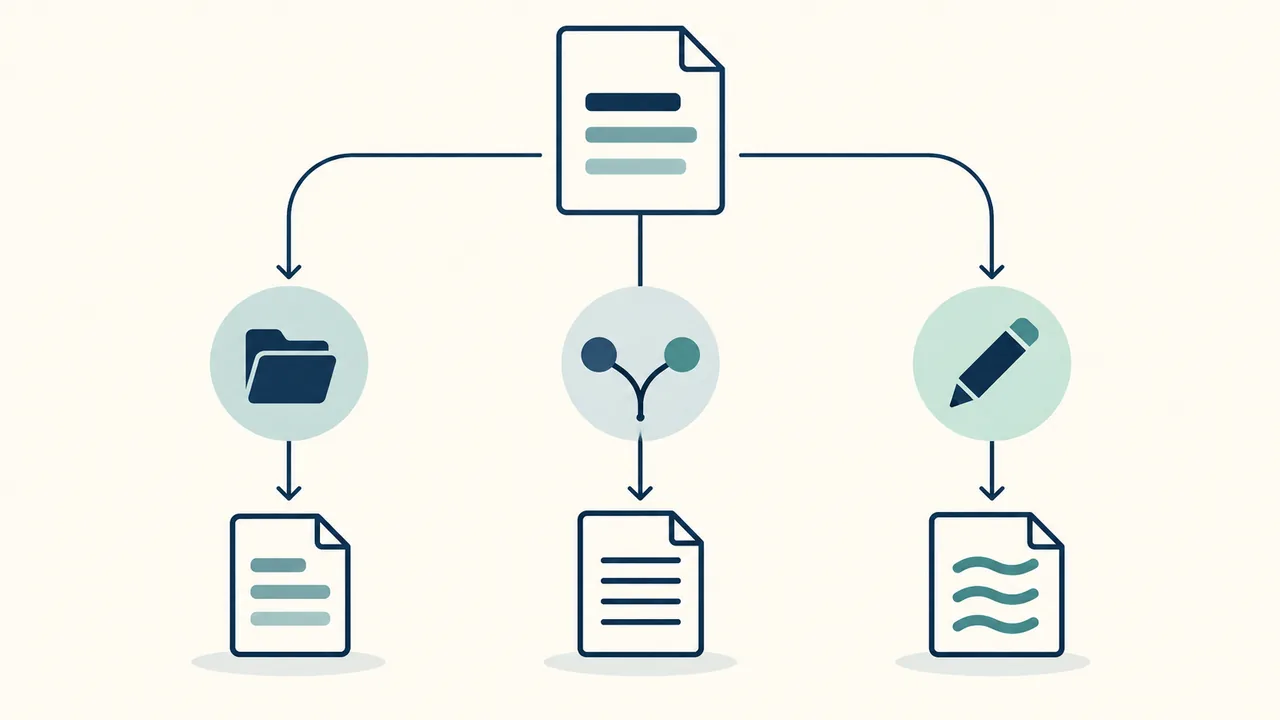
Why PDF is the best default when no one expresses a preference
A clean PDF is the best default when the employer accepts PDF and Word equally and wants a finished resume rather than an editable draft. It gives you a fixed document to inspect before submission and reduces the chance that someone opening the file will see a different layout because of a change in software or settings.
“Fixed” does not mean “perfect.” A PDF can preserve an awkward line break just as faithfully as it preserves a good one. Exporting to PDF does not correct a weak design, a crowded page, or an inaccurate statement. It simply gives you a final-format file whose appearance you can inspect directly.
That makes PDF a sensible hand-off in common application situations:
- You have finished the resume and do not expect the recruiter to edit it.
- The upload field lists PDF as accepted.
- You have opened the exported file and checked its layout.
- The PDF contains selectable text where expected, rather than only a flat image of the page.
- You can identify the file clearly and attach the intended version.
The main advantage is control over the document you reviewed. You can open the PDF on your device, scan each page, and confirm that the name, contact details, dates, headings, and final line appear as intended. If the file looks wrong, fix the source and export again before uploading.
PDF is not a universal solution. A portal may require Word. A recruiter may need an editable file. A particular application may have an upload problem that its own instructions address. In those cases, the PDF default gives way to the actual workflow.
Do not choose PDF merely because someone online says it “beats” Word in every hiring system. That claim is broader than a supported file list can establish. Greenhouse’s upload documentation names PDF and Word formats among accepted candidate uploads, but that is product-specific support information, not comparative evidence about employer preferences or parsing outcomes. See the Greenhouse file-type list.
Choose PDF because it fits the stated instructions and lets you inspect a final document, not because you expect a particular hiring result.
When Word is the stronger choice
Choose Word when the employer explicitly requests it or when the process requires an editable document. Those are meaningful exceptions, not reasons to abandon PDF whenever you are uncertain.
A request for Word may appear in the job post, application form, email from a recruiter, or a supplied template. It may also be part of a process in which the employer asks you to complete fields, add information, or return a document for editing. The person receiving the file needs to work with it, not just view it. A PDF can make that harder.
Common reasons to choose Word include:
- The application says Word only. Follow the instruction, even if you normally send PDF.
- The employer sends a Word template. Keep the structure it asks you to use. Do not replace it with your personal layout unless the instructions permit that.
- A recruiter asks for an editable copy. Send the requested
.docxor other specified Word file. - The employer asks you to fill in or revise the document. Edit the requested file and return it in the requested format.
- The portal’s own recovery instructions ask you to try Word. Follow that product-specific advice if Word is accepted for the application.
Word has a practical cost: an editable file can display differently in another software version, operating system, font environment, or printer setup. The exact layout is less fixed than a PDF. That does not make Word a bad choice; it means you should inspect the file in the form you will submit and avoid delicate layout choices that depend on one exact rendering.
If you must send Word, use .docx when the instructions say “Word” but do not name an extension, provided the portal lists or accepts .docx. If the instructions specify .doc, .docx, or another variant, follow that exact wording. Do not rename a PDF with a Word extension or change the extension without converting the document. A filename ending in .docx does not turn a PDF into a Word file.
When an editable document is requested, do not attach both PDF and Word “just in case” unless the application allows or asks for both. Extra files can create uncertainty about which version is authoritative. Send the requested deliverable and keep your own source copy separately.
Hypothetical upload situations: choose the format the workflow needs
The following examples are hypothetical. They show how to apply the decision order; they do not describe real candidates, employers, or hiring outcomes.
Situation 1: The portal lists PDF and Word, but says nothing else
A job application’s upload field accepts .pdf and .docx. No file-format preference appears in the job post or field instructions. The resume is final, and the applicant has checked the PDF after export.
Choice: PDF. Both formats are allowed, but the employer has not asked for an editable file. A checked PDF is the cleanest default for handing over a finished document. The choice does not imply that PDF has an advantage in screening or improves the applicant’s prospects. It is simply the format that best matches a final document when either option is permitted.
If the PDF has a visible defect, do not send it just because PDF is the default. Fix the source and export again. If you cannot resolve the problem before the deadline and Word is accepted, inspect the Word file and use the cleanest compliant version.
Situation 2: The posting says “please upload a Word resume”
A portal technically displays both PDF and Word as upload choices, but the job post specifically asks for a Word resume.
Choice: Word. The job-specific request outranks the general list of portal-supported formats. Use the requested file type and inspect it before uploading. A broad portal capability list cannot cancel an employer’s narrower instruction.
If the wording leaves the extension unclear, check the upload field for accepted extensions. Use .docx only if the field accepts it or the employer’s instructions indicate it. If the field appears to conflict with the posting, ask the employer or use the portal’s listed support route rather than silently ignoring one of the instructions.
Situation 3: A recruiter asks for an editable version after the application
An applicant already submitted a PDF. A recruiter then emails asking for a Word copy so a team member can add comments.
Choice: Word for this follow-up. The original application instruction governed the original upload. The later request describes a new task: provide an editable document. Reply with the requested format, using the same accurate content unless the recruiter has asked for changes.
Do not interpret the request as evidence that the PDF was rejected or that the applicant’s status has changed. The request only tells you what file the recruiter wants for the next step.
Situation 4: A template must be completed and returned
An application provides a Word form with named sections and asks applicants to enter answers directly in it.
Choice: Complete and return the form as instructed. Do not export a redesigned PDF instead. The document structure may help the employer compare responses or route the information. The applicant’s task is to complete the supplied file, not to replace the process with a different one.
If the form includes instructions about preserving formatting, changing only specified fields, or returning a particular extension, follow them. If the file is difficult to edit, contact the employer or use the listed support method instead of rebuilding it from scratch without permission.
Situation 5: The upload rejects a PDF even though PDF is listed
An applicant selects a PDF, but the portal displays an error. The message says to reduce the file size and try again.
Choice: follow the error message first. Check the file size, re-export if needed, and retry. If the portal continues to reject the PDF and Word is an accepted alternative, try a checked Word copy. Keep the filename straightforward and confirm that the upload has completed before submitting.
Do not assume that changing format is always the correct fix. The message might point to size, password protection, a damaged file, or another issue. Read the actual error. If it remains unclear, consult the portal help or contact the employer rather than making repeated blind attempts.
Situation 6: The application gives no format guidance and the deadline is close
A job post includes no file instructions. The upload field does not show its accepted extensions until the applicant selects a file. The applicant has a checked PDF ready and little time remains.
Choice: try the PDF if the field accepts it, then verify the upload. If the portal provides a format error, follow it and use an accepted alternative. Do not spend the remaining time debating general theories about PDF versus Word when the application can answer the practical question through its own interface.
If the portal’s instructions remain unclear and an employer contact is available, ask a short, specific question. For example: “The posting does not specify a resume file format. Do you prefer PDF or Word?” Do not delay a submission past its deadline solely to obtain a preference when the portal accepts the file and provides no indication of a problem.
Situation 7: The portal populates fields from the uploaded resume
A portal accepts a PDF and fills in name, employment, and education fields after upload.
Choice: check both the file and the extracted fields. The uploaded document and the portal’s entries are two separate things. Confirm that the resume preview is the intended version; then review the populated dates, titles, schools, and contact details. Correct mistakes in editable fields before submitting.
Greenhouse’s MyGreenhouse candidate FAQ says its parsing can make mistakes and advises candidates to review and edit information before saving a profile and before submitting applications. It also gives a product-specific format recommendation for that workflow. This guidance applies to MyGreenhouse; it should not be turned into a universal rule for every employer or portal. MyGreenhouse FAQ for candidates.
The lesson is not “always use the format one particular platform recommends.” It is “follow the application’s directions, then check what the system did with your information.”
Check the instructions before you export
Before choosing the file, look for instructions in the places where an employer is most likely to put them. Do this in order, and stop once the requirement is clear.
- Read the job post. Search for “resume,” “CV,” “PDF,” “Word,” “document,” or “file.” Check both the application instructions and any section about required materials.
- Read the upload field. Look at its label, helper text, accepted extensions, and error messages. A control that names accepted formats tells you what it supports; it may not tell you which one the employer prefers.
- Check the employer’s application FAQ or candidate instructions. Prefer instructions for the employer and application over generic advice about job applications.
- Read recruiter messages carefully. A later request may apply to a follow-up task rather than replace the original submission requirement.
- Ask a specific question if a real conflict remains. Point out the two instructions that appear inconsistent and ask which file to use.
For example, “PDF or Word is accepted by the portal, but the posting says Word. Should I submit .docx?” is more useful than “What file format do you like?” It identifies the conflict and gives the employer something concrete to answer.
Do not use a software vendor’s general help page as a substitute for an employer’s instructions. Product documentation can tell you which formats that product supports, what error conditions it describes, or how its own candidate tools work. It usually cannot tell you what every employer using that product prefers for every vacancy. The distinction keeps your decision grounded in evidence rather than reputation.
Check a PDF before you upload it
A PDF should be inspected after export, not assumed correct because the source document looked right. Exporting changes the document into the actual file you are about to send. Review that file, page by page.
- Open the exported PDF. Do not stop at the export confirmation. Make sure the file opens and contains the expected number of pages.
- Check page breaks. Look for a heading stranded at the bottom of a page, a bullet split awkwardly, an empty final page, or a section pushed into a crowded corner.
- Check the first and last lines. The first page should begin where you expect. The last page should not cut off a final role, skill, or education entry.
- Check fonts and symbols. Look for missing characters, substituted fonts, inconsistent bullets, or text that has shifted into another line.
- Check links and contact details. Make sure an email address, phone number, portfolio link, or other included contact detail is accurate and legible.
- Select and copy a short passage. If the document is meant to contain text, confirm that ordinary text behaves like text rather than only a full-page image. Copying a sentence into a plain-text field can reveal a basic problem, though it does not prove how a particular employer’s software will interpret the whole file.
- Check the filename and folder. Confirm that you are about to upload the final file, not an earlier export or an unrelated document.
- Return to the portal and verify the upload. Look for the displayed filename, preview, or confirmation that the upload finished.
If the exported PDF contains broken layout, fix the source file and export again. Avoid correcting the PDF itself unless you know the edit will preserve the document’s text and appearance. After any edit, open the resulting file again and repeat the checks that could have changed.
A PDF can also look right while its text layer is poor. A scanned or image-only page may be visually legible to a person but harder for software to search or select. The quick selection check can flag that condition; it cannot establish how a specific system parses the document. Do not treat a successful text selection as a guarantee of machine readability or hiring-system performance.
For a more focused walkthrough, use the site’s guide to checking a resume PDF before upload. If you create or revise a resume in the free resume editor, export the file, then inspect that exported version in your own PDF viewer before attaching it.

Check a Word document before you upload it
A Word document needs a different final check because its appearance can shift between environments. Review the file in Word or a compatible editor, then confirm that the portal accepts the extension you are submitting.
- Open the exact file you plan to send. Check that it is a Word document, not a PDF renamed with a
.docxextension. - Confirm the extension. Use the extension the employer or portal asks for. If the instructions say only “Word,” check the portal’s accepted formats before choosing a variant.
- Inspect every page. Look for page breaks, changed line wrapping, misplaced bullets, altered spacing, or text that moves when the file opens.
- Check fonts and layout. If you use uncommon fonts or complex layout elements, confirm that the document still looks legible in the environment available to you. Prefer a stable, simple layout when you cannot inspect the recipient’s setup.
- Review tracked changes and comments. Remove private notes, draft comments, and unresolved edits unless the employer specifically asks for them. Do not leave accidental revision marks in a finished application document.
- Check the content again. Verify the dates, names, contact information, links, and final line. An editable format does not make a content check less important.
- Use a clear filename. Keep the name descriptive enough to identify the file and simple enough to upload without confusion.
- Confirm the upload. After selecting the file, check that the portal shows the intended filename and does not report an error.
If Word is requested because someone will edit the document, avoid locking it down in a way that prevents the requested work. If a Word template includes protected fields or specific editing instructions, use the intended fields and ask for help if the file will not accept your changes.
A Word preview can still differ from what another person sees. You cannot control every machine or software setting used to open it. You can reduce avoidable surprises by using a clear structure, avoiding fragile formatting, and following the employer’s template when provided.
Check what the portal does after the upload
A successful upload does not always mean the application fields are accurate. Some portals display a preview, extract information into fields, or use a profile that can be edited separately from the file. Inspect each part that the application lets you inspect.
After upload, ask:
- Does the portal show the filename I intended to attach?
- Can I open or preview the uploaded document?
- Did it attach the latest version rather than a saved older copy?
- Did the system populate dates, job titles, education, and contact fields correctly?
- Are any required fields blank even though the information is present in the resume?
- Did the portal retain an older resume in a profile or reusable candidate account?
- Does the application ask me to confirm the uploaded file before submission?
Correct the portal fields when they are editable and wrong. The application may store information in a profile separately from the file you uploaded. A clean resume does not automatically correct stale or mistaken profile details.
Platform guidance can be useful here, but keep its scope narrow. MyGreenhouse’s candidate FAQ says parsing can make mistakes and advises candidates to review and edit information before saving their profile and before submitting applications. It also says that MyGreenhouse uses the most recently uploaded resume by default and does not support multiple resumes in that profile. Those are specific statements about MyGreenhouse, not a description of all application systems. Read the MyGreenhouse FAQ.
If your application uses that product, its instructions can inform your checks. If it uses something else, consult that employer’s and portal’s own guidance. Never assume that one platform’s recommendation transfers unchanged to another.
If a portal asks you to replace a previously uploaded resume, verify which file the application will use. This matters when a candidate has more than one role-specific version. Do not overwrite a saved profile casually if the system applies that change to future applications too. Review the platform’s account behavior before replacing a reusable file.

Choose a format without turning it into a hiring theory
PDF-versus-Word advice often goes too far. A supported format list is not a hiring-outcome study. A portal accepting a file is not proof that every employer prefers it. One product’s recommendation is not a universal standard.
Keep your reasoning to claims you can support:
- Supported means accepted by that particular upload workflow. It says the system permits that file type in the stated context.
- Preferred means the employer or application says it favors that type. Look for direct wording, not inference from a list.
- Readable means you have checked the file visually and performed basic text checks. It does not promise perfect interpretation by software.
- Editable means the recipient can change the document more easily. That is useful when the process asks for revisions or comments.
- Successful upload means the file appears to have been attached. It does not prove that every extracted field is correct or that the employer has reviewed it.
Greenhouse’s general support article lists file types accepted for candidate uploads in Greenhouse Recruiting. Its candidate FAQ separately gives a PDF recommendation for MyGreenhouse and tells candidates to review parsed information. Those pages support product-specific statements. They do not prove that every company, every system, or every role prefers PDF, nor do they establish a hiring advantage for PDF or Word. Greenhouse upload formats and MyGreenhouse candidate guidance.
So use a narrow, reliable rule: obey the application, then choose the clearest compliant file for the job of that file. If the job is to present a finished document and both formats are accepted, PDF is a practical default. If the job is to let someone edit the document, Word is the better tool.
Common mistakes that create avoidable uncertainty
A format mistake is often small, but it can be easy to prevent. Avoid these habits:
Sending the format you usually use instead of the requested format
A familiar workflow is not a reason to ignore the posting. If it asks for Word, do not upload PDF simply because you prefer it. If it asks for PDF, do not send Word because you assume it is easier for a portal. Follow the specific instruction.
Treating “accepted” as “preferred”
A dropdown that allows two file types tells you the portal supports both. Unless the employer states a preference, do not infer one from the order of the options or from a vendor help page.
Uploading both formats without a reason
Two files can leave the recipient unsure which version to review. Send both only when the application asks for both or clearly provides separate upload fields for distinct purposes.
Trusting the source document instead of the exported file
A resume can look correct in an editor and wrong after export. Inspect the actual file attached to the application. If you revise it, inspect the new export too.
Assuming the file preview proves the portal fields are right
A visible preview may show the document, while separate fields contain extracted or profile information. Check both when the application presents both.
Renaming a file instead of converting it
Changing .pdf to .docx in the filename does not convert the file. Use the appropriate export or save function and open the result to confirm what it is.
Treating an upload error as proof that your format is wrong
Read the error. It may concern size, file condition, or another restriction rather than the document format. Follow its specific guidance, then retry or contact support if needed.
Sending a file that contains comments or private working notes
Before sending Word, check for comments, tracked changes, or material meant only for your own drafting. Remove them unless the employer asks to see them.
The repair is the same each time: return to the application’s instructions, identify the actual issue, and correct only what needs correcting.
A short decision procedure for the final upload
Use this procedure when you are ready to submit. It keeps the decision quick without skipping the checks that matter.
- Find the file requirement. Read the job post, application field, and relevant candidate instructions.
- Identify the strongest instruction. A job-specific or recruiter request outranks generic advice. If two instructions conflict, seek clarification where practical.
- Check whether the workflow needs an editable file. If yes, use Word. If the document is only a finished hand-off and either type is accepted, use PDF by default.
- Confirm the file type and extension. Do not rely on the filename alone.
- Inspect the file. Check visual layout, content, and basic text behavior for PDF; check layout, extension, comments, and tracked changes for Word.
- Upload and verify. Confirm that the portal shows the right filename and that the file has attached.
- Review portal fields. Correct extracted or saved information where the application allows it.
- Submit only after a final check. Make sure the chosen file and the application details agree.
If you have no explicit preference to follow, do not stall on broad speculation. A checked PDF is the best default for a finished document. Switch to Word when the employer asks for an editable file or when the portal’s specific instructions give you a reason.
Frequently asked questions
Is PDF better than Word for every resume application?
No. PDF is the best default when the application accepts both without preference and you are submitting a finished document. Word is the right choice when the employer requests it or needs an editable file. The application’s instructions come first.
If a portal accepts PDF and Word, which should I upload?
Use PDF if the portal and employer give no preference, the file is final, and you have checked the exported document. Use Word if the process requires editing or the application explicitly requests it. A list of accepted extensions alone does not establish an employer preference.
Does an upload field that accepts Word prove that Word is preferred?
No. It proves only that Word is an accepted format for that field, unless the employer or application separately labels it as preferred. Check the posting and field instructions for a preference.
Should I upload both PDF and Word to be safe?
Not unless the application asks for both or provides separate fields for distinct documents. Otherwise, send the requested format, or one clear file if either is accepted. Extra copies can make it less clear which version you intend the employer to use.
What if the recruiter asks for Word after I submitted PDF?
Send Word if the recruiter asks for an editable copy. Keep the content consistent unless they request a revision, and do not assume the request means anything about the hiring decision. It tells you which format is needed for that next task.
What if the portal rejects my PDF?
Read the error message first. Follow any specific instruction about file size or format. If PDF still fails and Word is accepted, try a checked Word file. If neither works, use the portal’s support route or contact the employer rather than repeatedly submitting files blindly.
Does a successful upload mean the portal read my resume correctly?
Not necessarily. A completed upload confirms that the file appears to have attached. If the portal extracts information into fields or displays a profile, review those details separately. Greenhouse’s MyGreenhouse FAQ, for example, warns that parsing can make mistakes and advises candidates to check and edit their information. This is guidance for that product’s candidate workflow, not a guarantee about other systems.
Can I use a PDF if the employer might edit it later?
Use Word if the employer asks for an editable document or plans to work directly in the file. If the employer only needs to view a finished resume, PDF remains the better default when both formats are accepted. If the workflow is unclear, ask what the recipient needs to do with the file.
What if the instructions say “resume” but do not specify a format?
Check the upload field and employer’s application guidance. If both PDF and Word are accepted without preference, use a checked PDF for a finished document. If no accepted types are visible and you cannot find guidance, ask the employer if time allows; otherwise, try a clean PDF and follow any portal error message.
Does saving a resume as PDF guarantee its text can be searched or read by software?
No. A PDF can contain selectable text, scanned images, or a mixture. Opening it and selecting a short passage is a useful basic check, but it does not prove how a particular system will interpret the full document. Follow the application’s instructions and review any fields populated from the upload.
The practical rule
Follow the application’s file instructions first. When both PDF and Word are accepted without preference, send a clean, checked PDF if you are handing over a finished resume. Choose Word when the employer requests it or the process needs an editable document. Then verify the file and the portal details before you submit.
If you need to prepare or revise the document, browse the resume template gallery or use the free resume editor. Export the version you intend to submit, inspect it, and upload only after the file matches the application’s instructions.