Keep a Record of the Resume You Sent to Each Job
The safest way to check which resume version you submitted to each job application is to save an exact copy of the file and record it in an application log when you apply. Keep the job, employer, submission date, filename, and other submitted materials together. A portal may show useful application details, but don’t make it your only record.
You apply for one role with a resume focused on operations. A week later, you apply for a related role using a version that leads with customer support. Then someone invites you to interview and asks about a project that appears in one resume but not the other. Which document did they receive?
If you can answer by checking one record, you can prepare from the right facts. If you have to guess from memory, the recordkeeping system has already failed.
The best default is deliberately simple: save an exact copy of every resume you submit, then write down that filename and the application details before you move on. Keep the cover letter and any other submitted documents with the same record when they matter. Treat a portal as a possible source of confirmation, not a dependable archive.
There is one useful exception. If an employer’s system lets you download a submitted application packet, save that packet too. It may confirm what the employer’s system recorded. It still does not replace your own copy of the individual file you selected and a note linking it to the role.

Why your own record beats relying on a portal
A job portal is not necessarily a version archive. What you can see later depends on the employer, the platform, how the application was submitted, and which details the employer chooses to expose. Even a real application record may show status and dates without making the resume attachment available to download.
For a concrete example, Greenhouse’s candidate FAQ says an earlier submitted resume may not be visible in MyGreenhouse and that the most recently uploaded resume is used by default. It also says MyGreenhouse does not support keeping multiple resumes in the account. That describes MyGreenhouse, not every employer’s system, but it shows why a reusable profile should not be mistaken for a record of every uploaded file. Greenhouse’s MyGreenhouse FAQ for Candidates
A portal can still help. It may show an application date, status, uploaded documents, or a confirmation page. Save a downloadable copy if one is available. But don’t assume the portal has retained every earlier upload, that its current resume is the one you originally sent, or that a visible profile field reproduces a submitted attachment.
Your own record answers a different question: what did you select and submit for this application? That answer matters when you prepare for a conversation, correct a mistake, follow up, or simply want to avoid mixing versions. Keeping a copy does not prove that a portal accepted it or that an employer saw the file as intended. The confirmation screen or message is separate evidence of submission.
Make those two pieces of evidence work together:
- Your saved copy identifies the exact file you intended to submit.
- Your submission evidence records that the application was sent, such as a confirmation email, receipt, or saved portal page.
- Your application log connects the file to the employer, job, and date.
If the portal provides the submitted packet, add it as a fourth item. If it doesn’t, your saved copy and confirmation are still a better record than memory alone.
What to put in a lightweight application log
A useful application log identifies the application and the files tied to it. It does not need to become a second copy of your whole job search. Start with one row per application, whether you use a spreadsheet, a private document, a notes app, or a paper log.
Record these fields:
| Field | What to enter | Why it matters |
|---|---|---|
| Employer | The company or organization name | Separates roles with similar titles |
| Role | The posted job title, or a short distinctive version | Makes the application identifiable later |
| Job reference | Posting URL, requisition number, or saved job description | Helps distinguish reposted or renamed roles |
| Submission date | The date you actually submitted | Helps order applications and locate confirmation messages |
| Resume filename | The exact saved filename | Points to the document you sent |
| Other materials | Cover letter, portfolio, writing sample, or answers, as relevant | Keeps the application packet’s parts connected |
| Confirmation | Email subject, receipt, or portal reference | Helps verify that the application was received |
| Notes | One or two facts worth remembering | Gives you context without relying on memory |
The four fields named in this article’s core method are role, submission date, filename, and saved copy. Employer and job reference make the record easier to locate, especially if two jobs have similar titles. The other fields are optional; add them when they help you reconstruct the application, not because every row needs to look like a database.
A hypothetical row might look like this:
| Employer | Role | Submitted | Resume file | Other file | Confirmation |
|---|---|---|---|---|---|
| Northstar Services (hypothetical) | Operations Coordinator | 2026-10-06 | Jordan-Lee_Northstar_Operations-Coordinator_2026-10-06.pdf | Jordan-Lee_Northstar_Operations-Coordinator_Cover-Letter_2026-10-06.pdf | Confirmation email, subject “Application received” |
This example is fictional. The name, employer, files, and message are illustrative, not a candidate’s real history or a claim about an employer’s process.
Keep the record factual and small. A note such as “Used the version that lists the inventory project; reviewed the posting’s scheduling requirement” can help you recall what you submitted. Don’t use the log to write an inflated story about why you applied or what the employer will think. Its job is identification, not persuasion.
For most job seekers, a spreadsheet is a sensible default because each application has the same basic fields and can be sorted by date or employer. A folder and a plain-text log also work well if you already have a reliable system. Pick the least complicated setup you will update immediately after an application. An elegant tracker that you stop maintaining is worse than a plain table you use every time.
How to save an exact copy before you submit
Save the final document as a separate copy before opening the application form. Don’t overwrite the file you are still editing and then trust yourself to recreate the older one. A copy gives you a stable reference even if you later revise your general resume, replace a draft, or upload a different file to a profile.
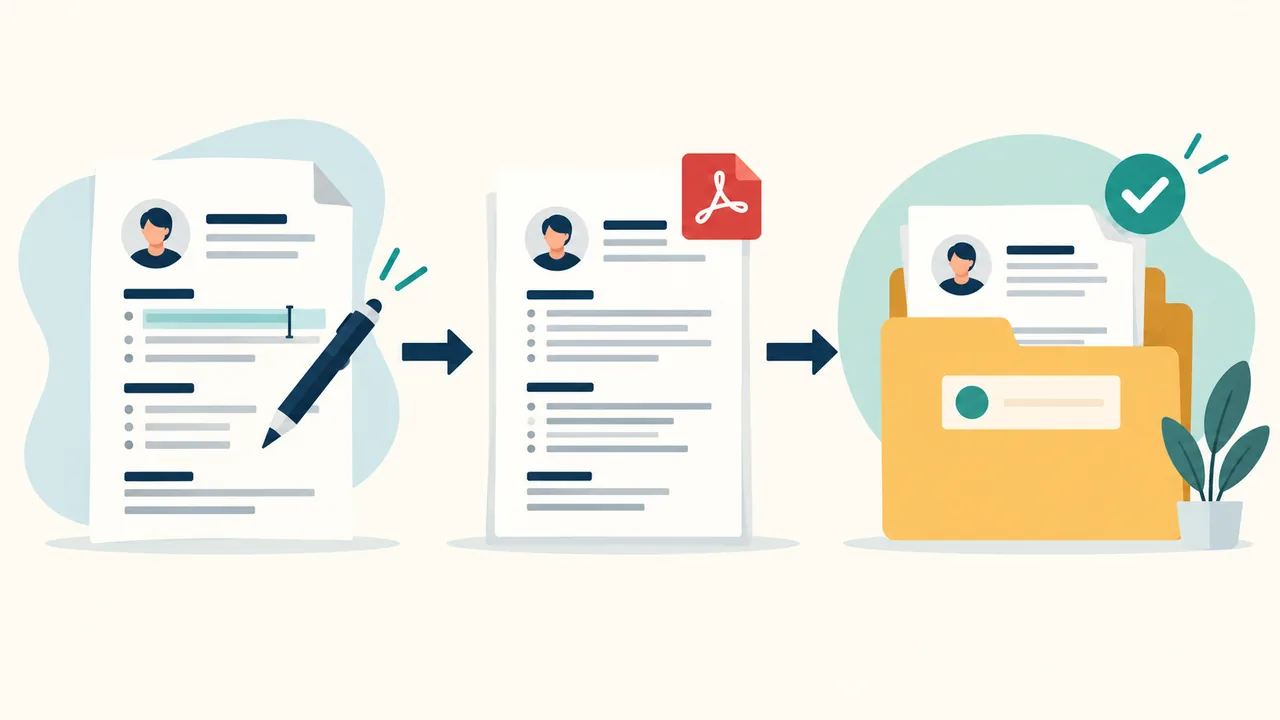
Use this sequence for each application:
- Finish the resume for this role. Make any truthful, relevant edits before exporting. Confirm that dates, titles, contact details, and claims are accurate.
- Export the version you intend to submit. If the application asks for a particular format, follow that instruction. Keep the resulting file as a distinct copy.
- Give the file a distinctive name. Include your name, employer or role, and a date or version marker so you can recognize it later.
- Open the saved file. Check that it is the intended version, that all pages are present, and that the text and layout are legible. The exported file, not the editable draft, is what you need to identify.
- Submit that exact file. When you reach the upload step, select the saved copy you just checked. Avoid selecting a similarly named draft from a recent-files list without verifying it.
- Record the application. Add the date, role, filename, and where the file is stored. Include any other submitted material that you might need to discuss.
- Save confirmation evidence. Keep the confirmation email or a permitted copy of the submission receipt with the record. If the portal offers a submitted packet, download it as well.
The point is not to create ceremony around every click. The point is to close the gap between editing, exporting, uploading, and remembering. The closer together those actions are, the less room there is for a wrong-file mistake.
If you create a PDF through a browser print dialog, check the exported PDF itself. A saved editable source and an exported PDF are not automatically identical records. You want to retain the file you selected in the portal, not merely the document you used to create it.
Name versions so you can tell them apart later
A filename should help you find and identify a file. It should not carry the whole application log. Use a stable pattern, for example:
YourName_Employer_Role_YYYY-MM-DD.pdf
A hypothetical filename could be:
Jordan-Lee_Northstar_Operations-Coordinator_2026-10-06.pdf
If you are not ready to name the employer or the role, use a neutral target label that still distinguishes the copy from your general resume. If the posting uses an unusual title, preserve a recognizable version of it rather than replacing it with a vague label such as Resume-Final.pdf.
Avoid names such as final, final2, latest, or new resume on their own. They answer what the file felt like while you were editing it, not which application it belongs to. Similarly, a name like Resume.pdf gives you no help when a folder contains several documents with the same name.
Use one date convention throughout, such as year-month-day. That format makes the date unambiguous and sorts naturally in many file lists. Record the date you submitted in the log even if the filename date represents when you created the copy. They might differ if you prepare the document and apply later. Label what each date means; don’t quietly treat an export date as proof of a submission date.
A simple version number helps if you revise several times for the same role before applying:
Jordan-Lee_Northstar_Operations-Coordinator_v01.pdfJordan-Lee_Northstar_Operations-Coordinator_v02.pdfJordan-Lee_Northstar_Operations-Coordinator_SUBMITTED_2026-10-06.pdf
Use the version number while editing and the submission marker only after you have sent that file. Don’t mark a draft “submitted” in advance. Once you submit, don’t replace the submitted copy with a corrected file under the same name. Keep the original unchanged and give any later correction a new name and a separate log entry.
The filename is a label, not a security measure. If it contains information you would not want exposed in a shared folder or download list, leave that information out. Avoid putting private application answers or sensitive personal details in filenames. Store files in a location you control and can find again; the name alone cannot protect a document or guarantee access to it.
Keep the application’s documents together without making a maze
A small amount of structure prevents a common problem: knowing a file exists but not knowing which application it belongs to. Choose one storage pattern and use it consistently.
Option A: one folder for all job applications. Give each submitted resume a distinctive filename and use a single log to point to it. This is quick to start and easy to search. It works best when your application volume is manageable and you already name files carefully.
Option B: one folder per application. Name the folder with employer, role, and date. Store the submitted resume, cover letter, relevant work sample, confirmation, and a copy of the job description there if you need it. This is easier to inspect as a packet, but it creates more folders to maintain.
Option C: one master folder with a modest subfolder scheme. For instance, group applications by year, then use one folder per employer or role. This can help with a long-running search, but don’t build a deep hierarchy before you need it. Too many levels make it harder to save a file at application time.
For most people, choose A or B, not an elaborate hybrid. If you apply to a few roles at a time, a single folder and a log are usually enough. If each application has many custom materials, separate folders make the connection obvious. Either way, the log should point to the saved copy, and the copy should not be casually overwritten.
A practical folder could hold:
- the exact resume file submitted;
- the cover letter, if you sent one;
- a writing sample or other requested attachment, if applicable;
- confirmation evidence;
- the job description or a short note identifying the posting, if useful.
Don’t save every intermediate draft just because storage is available. Keep the versions that help you understand how the application changed, especially the exact submitted copy. Remove redundant drafts only when you are sure they are not the sole record of a submitted document. A file labeled “old” could still be the only copy of what an employer received.
Record more than the resume when the application calls for it
A resume is only one part of some applications. If you submitted a cover letter, a portfolio link, a writing sample, or custom answers that refer to a particular project, keep enough information to remember the whole packet. The resume log should not imply that every application included every item. Mark each item as submitted, not submitted, or not requested where that distinction helps.
A concise materials field might say:
Resume: saved PDF. Cover letter: saved PDF. Portfolio: link recorded. Short-answer questions: answers copied to the application notes.
That is more useful than a vague “tailored” note. It identifies what to retrieve without trying to preserve a portal’s entire interface. If an employer’s form asks you to enter work history and education separately, the form entries may not be in the resume file. Keep a permitted copy of your answers if you may need to check what you stated later, but protect it as personal information.
For a portfolio, record the URL you actually submitted and, if it changes over time, the date you checked it. A link can point to different work later, so the URL alone may not recreate the exact content an employer could have viewed at the time. Keep an appropriate dated copy or list of the relevant work when that is important and you have the right to retain it. Don’t copy confidential material into your job-search archive.
For a writing sample, save the submitted file separately from the working draft and note any version or title. If you later update the sample, don’t let the new copy blur what you sent. The same principle applies to a presentation, portfolio PDF, or project summary.
For application questions, preserve only what is useful and appropriate. A brief record such as “Availability answer: available after notice period; checked wording in confirmation email” can be enough. Don’t store passwords, access codes, or unnecessary sensitive data alongside the resume. Keep the tracker focused on locating materials and preparing accurately.
A routine that takes less effort than reconstructing an application
The best tracking routine happens at submission time, not after an interview invitation. Use one short pass before applying, then one short pass right after.
Before submission: Confirm the employer and role. Export the resume copy. Open it. Check the filename. Upload that file. If the system shows a preview or filename, compare it with the copy you chose. Review the rest of the form before submitting.
After submission: Record the actual date and time if useful, mark the status as submitted, save the confirmation message, and note the exact filename. If there is a receipt or downloadable packet, save it. Then stop editing that submitted copy.
A good log entry should answer, without detective work:
- Which employer and role was this?
- When did I submit it?
- Which exact resume file did I select?
- Where is that file now?
- What other materials or answers did I submit?
- What evidence confirms the application went through?
If you cannot answer one of those questions immediately, add the missing detail while the application is still open and the evidence is easy to find. Don’t wait for a recruiter to contact you.
When you revisit a record, open the file rather than trusting its name alone. A person can accidentally save the wrong content under a perfectly descriptive filename. Check the document’s actual role emphasis and a few distinguishing details. For instance, confirm whether a particular project or section appears if that is what separates two versions. Do not infer that an item was submitted simply because it appears in the current editable resume.
How to prepare for two similar applications
Two roles at one employer are especially easy to confuse. A single employer name does not identify a single application, and the same job title may appear in different locations or teams. Give each application its own row, submission date, and saved copy, even when most of the resume is identical.
Consider this hypothetical example. Sam applies to a fictional company, Lattice Harbor, for two roles: Service Operations Associate and Client Implementation Associate. The first resume emphasizes scheduling and process documentation. The second puts training and client communication earlier. Those are illustrative content choices, not claims about a real applicant.
A useful log might look like this:
| Employer | Role | Submitted | Resume file | Difference to recall |
|---|---|---|---|---|
| Lattice Harbor (hypothetical) | Service Operations Associate | 2026-10-06 | Sam-Rivera_Lattice-Harbor_Service-Ops_2026-10-06.pdf | Process documentation appears near the top |
| Lattice Harbor (hypothetical) | Client Implementation Associate | 2026-10-09 | Sam-Rivera_Lattice-Harbor_Client-Implementation_2026-10-09.pdf | Training and client communication lead |
The difference note is optional, but it is useful when versions vary in emphasis rather than in obvious facts. It should describe what changed, not claim one version is better or that the employer will respond a certain way. Both copies remain truthful; the application record tells Sam which presentation went with which role.
If you reused the same resume for both roles, you still need separate application entries. The filename can be the same only if the file truly is identical and you deliberately keep one unchanged copy. In practice, saving role-specific copies makes the record clearer and reduces the risk that later edits will change your only saved file.
Don’t create a new resume for every job just to have a different file. The purpose is traceability, not needless customization. If no substantive edits were needed, save a copy with a role-specific name and record that it is the same content as your base version. If you made meaningful edits, record the difference plainly. Keep all claims supportable.
What version control means for a job seeker
Version control is simply the habit of distinguishing drafts, saved versions, and the copy you submitted. You do not need specialized software to do it. You need to know which file is current, which files are historical, and which one was actually sent.
A minimal status system can use three labels:
- Draft: Still being edited; not submitted.
- Ready: Checked and saved for a particular application; not yet submitted.
- Submitted: The exact copy selected for an application, with a recorded date.
Use these labels in a filename, a folder, or the log. Avoid putting a status in multiple places if you will forget to keep them in sync. The log can be the authoritative record, while filenames identify the saved files.
After submission, freeze the submitted copy. If you find a factual error, keep the original and create a corrected file under a new name. Record the correction and what you did about it. This preserves an honest history: what you sent first, what you later noticed, and whether you contacted the employer. Replacing the file quietly can make it impossible to reconstruct what happened.
A correction is not automatically a reason to send another message. First check whether the issue changes a material fact, such as a date, qualification, contact detail, or a statement that could mislead. A minor formatting preference discovered afterward is different from an incorrect claim. If you decide a correction is necessary, follow the employer’s stated process or contact the company with a concise explanation. Keep the message factual. Don’t claim that an updated file replaces the earlier one unless the employer confirms that.
If you edit a general resume after applying, save it as a new current version. Do not overwrite copies in the application archive. The next application can use the new version, while the old application record remains intact. That separation lets you improve your materials without rewriting your history.
What to do when a portal shows a different resume
A portal may display a profile resume, a current upload, a resume preview, or a document attached to one particular application. Those things are not necessarily the same. Before concluding that the wrong file was sent, identify exactly what the page is showing.
Check the following in order:
- Confirm the application identity. Match the employer, job title, location, and submission date. A profile page may cover several jobs.
- Check the label beside the document. Does the portal call it a profile resume, an application attachment, or a document for a specific job? Don’t assume these labels mean the same thing.
- Compare the visible filename. If the system exposes one, match it against the log. Remember that some services rename files after upload.
- Look for a dated submission receipt or packet. A confirmation email or application-specific download is more directly tied to the submission than a current profile field.
- Compare contents if you can download the file. Check a few details that distinguish the submitted copy from your other versions.
- Contact the employer if the discrepancy could affect the application. Ask what document is associated with the application and whether it can be corrected. Avoid assuming the portal’s current profile reflects what the employer received.
A profile that now shows a newer resume does not, by itself, establish what was sent earlier. Greenhouse makes this distinction explicit for MyGreenhouse: it notes an earlier submitted resume may not be visible and the latest uploaded resume is used by default. Again, that guidance is specific to that service. Use the employer’s own instructions and the application-specific evidence you have.
If the portal lets you update a profile resume but not a submitted application, don’t treat the update as a replacement. The update might apply to future applications only. When in doubt, ask the employer through a contact route provided for applicants. State the role, date, and issue, and ask what action is possible. Keep the answer with your record.
Recovery checklist when you cannot find the submitted file
If you forgot to save a copy, don’t start by guessing. Work from the strongest remaining evidence and keep your reconstruction clearly separate from a known submitted copy.
- Find the submission confirmation. Search your email for the employer name, role title, application receipt, or the date you applied. Check the account and email address you used for that application.
- Return to the application portal. Sign in using the relevant email. Check whether the specific application appears, and whether the system offers a document download or receipt. A missing application view is not proof that no application was submitted; the portal may not display all applications.
- Check your downloads and export locations. Search your resume folders and recent downloads for the role, employer, date, or a distinctive filename fragment. Look for the final exported PDF as well as the editable source.
- Check legitimate backup locations. Search your own cloud storage, device backups, or file history if you use them. Check only accounts and devices you are authorized to access.
- Inspect nearby versions. If you find several candidates, compare them against notes, export dates, role-specific content, and any saved job description. Label the result as likely or unconfirmed unless evidence identifies the exact submitted file.
- Ask the employer when exact confirmation matters. Contact the recruiting team using its applicant instructions. Ask whether the submitted resume is available or whether you may provide a replacement. Don’t ask Greenhouse Support to retrieve an employer’s application file on the company’s behalf; the candidate FAQ directs application data questions to the employer.
- Record the outcome. Note what you found, what remains uncertain, who you contacted, and any response. If you create a reconstructed copy, label it “reconstructed” and never describe it as the original submission.
You may find a confirmation email but no attachment. That confirms an application event more readily than it confirms the exact file contents. You may find a resume PDF with the right role name but no reliable date. That makes it a candidate copy, not definite proof. Preserve these distinctions in your log.
If an interview is imminent, use the best available evidence without pretending certainty. Tell yourself what you know: “I have the version saved for this role, but I cannot verify whether it was the upload.” Review that version, then prepare to discuss accurate work history and examples. If the difference could affect a representation in the application, contact the employer promptly and ask how to handle it.

What if you submitted the wrong version?
First establish whether it is actually wrong. A portal may show a current profile file rather than the application attachment. Compare the actual content, not just the name. If the file is confirmed and the difference is a minor layout change, a second upload may create more confusion than it resolves.
If the wrong file contains a meaningful error or omits information that materially changes your application, use the employer’s correction process. If none is listed, write a brief message with the role, submission date, and a clear request. For example, in this hypothetical wording:
I applied for the [role title] on [date]. I noticed that the resume attached to my application was an earlier version. Is there a way to provide a corrected copy for the application record? I can send it through your preferred channel.
This is a template, not a real candidate’s message. Replace the brackets with accurate details, and do not claim the earlier resume was wrong if you cannot verify that. Avoid sending multiple competing versions unless the employer asks for them. Save the corrected file and the message, then record the response.
If the error is in a factual claim, correct the record plainly. Don’t hide it inside a new version or describe the change as cosmetic. A concise correction protects clarity better than a long explanation that adds unrelated personal detail.
If the employer says it cannot replace an application document, keep that response. Your record is for your own accuracy, not a guarantee that the organization will accept a later file or change its process.
How to use the record when an interview arrives
Before an interview, open the resume copy linked to that application. Don’t prepare from the newest file in your general folder. Review the job description, your submitted materials, and the confirmation record together.
Start with a short check:
- Which version was submitted, and can you verify it?
- Which experience or project did that version emphasize?
- Did you submit a cover letter or answer custom questions?
- Have any dates, titles, or project details changed since then?
- Is there anything in the submitted copy you should explain precisely?
The record helps you prepare to discuss what you actually submitted. It is not a script and it is not a reason to repeat wording mechanically. If a question refers to a detail that is absent from the saved version, you can answer accurately and note that your materials have since changed if relevant.
When the exact file is uncertain, don’t pretend you know. Review the likely version and your underlying facts. If the discrepancy is important, ask the employer before the conversation when practical. Your goal is a truthful, coherent explanation, not a performance built around a guessed document.
Privacy and backup: keep the record useful, not exposed
Your application log and resume copies contain personal information. Store them where you can retrieve them, but don’t share a public link to the whole archive or leave it in a location accessible to people who do not need it. Use the privacy and access settings of the storage service you already trust.
A backup is useful only if you can restore the file and locate it. If you keep records on one device, consider an appropriate backup you control. If you use cloud storage, confirm that the file actually finished syncing before relying on it. Avoid putting copies in several unmanaged places just to feel safer; you may later be unsure which one is current or whether a link exposes more than intended.
Keep a local copy of the submitted document when practical. For instance, resumetemplate.co’s editor keeps resumes in the current browser on the current device, and its local JSON backup is free. That makes your own saved export and backup habits important: browser-based editing does not create a central resume archive or cross-device history. You can use the free resume editor to prepare a document, but retain the application copy you export and submit. The template gallery is a starting point for design, not an application tracker.
Don’t store credentials, one-time codes, or sensitive identity documents in the same folder just because it is convenient. Keep only what helps you identify and prepare for applications. If you keep a job description, a link or short note may be enough unless the posting is likely to disappear and you have a legitimate reason to retain a copy.
A compact template you can start using today
Copy these headers into a spreadsheet or note:
| Employer | Role | Job reference | Submitted date | Resume filename | Other materials | Confirmation | Notes |
|---|
For a minimal system, keep only employer, role, submission date, filename, and file location. Add the rest when it solves a real retrieval problem. Don’t let the perfect template delay your next application.
A sample entry, entirely hypothetical:
| Employer | Role | Job reference | Submitted date | Resume filename | Other materials | Confirmation | Notes |
|---|---|---|---|---|---|---|---|
| Cedar & Finch (hypothetical) | Scheduling Assistant | Posting saved in application folder | 2026-10-06 | Alex-Kim_Cedar-Finch_Scheduling-Assistant_2026-10-06.pdf | Cover letter PDF | Receipt email saved | Resume version highlights scheduling and records work |
The note describes the document’s emphasis. It does not claim an achievement, predict a hiring result, or add a qualification. Keep your own notes that restrained and useful.
If you want an even shorter routine, use this line after each application:
Employer | Role | submitted date | exact resume filename | saved location | confirmation saved?
Fill it out before you close the confirmation page. That one line can spare you a long search later.
Common mistakes that make a record unreliable
Keeping only the editable master. The master may change after you apply. Save the exact exported file you uploaded.
Assuming the portal’s current resume is the old submission. A profile can be updated. Look for application-specific evidence and keep your own dated copy.
Using final.pdf repeatedly. A generic name hides which application the file belongs to and invites accidental replacement.
Recording a filename without saving the file. A note that points to a missing document cannot answer what it contained. Include the actual saved copy and its location.
Saving a file without recording the application. A folder of role-specific PDFs is better than nothing, but a log connects the copy to the date and role without guesswork.
Changing a submitted file in place. You lose the historical record. Save a new version and preserve the submitted one.
Treating a confirmation as proof of the attachment. A receipt can show that you submitted something; it may not identify the file contents. Keep the file and the receipt as separate evidence.
Overbuilding the tracker. A dozen fields you never fill are not a system. Start small and add fields only when you repeatedly need them.
The winning habit is not sophisticated software. It is a saved copy, a clear filename, and a completed row made at the moment of submission.
Frequently asked questions
Can I see which resume I uploaded after I apply?
Sometimes. Check the application-specific page, receipt, or downloadable packet. But access varies by employer and platform. Greenhouse’s candidate guidance for MyGreenhouse says an earlier submitted resume may not be visible and the latest uploaded resume is used by default. Your own saved copy and log are the more dependable basis for identifying what you intended to submit.
Should I save every resume version?
Save every exact version you submit. You do not need to retain every intermediate draft forever. Keep drafts while they are useful, but don’t remove a file that may be the only copy of a submitted resume. Separate drafts from submitted copies so you can tell them apart.
Is the filename enough to prove what I sent?
No. A filename is a label. Keep and open the actual file, and retain separate evidence that the application was submitted. If available, save the employer’s application packet as additional confirmation.
What if I used the same resume for several jobs?
Create a separate log entry for each application. You can point multiple entries to one unchanged file if it is genuinely identical, but role-specific copies are easier to identify and protect from later edits. Record the actual submitted filename for each role.
Should I contact the employer to ask for my resume?
Ask if the exact file matters and your own records and portal provide no answer. Use the employer’s applicant contact route, identify the role and submission date, and ask whether they can confirm or provide the application document. Don’t assume the company can share it or replace it.
What if I discover a mistake after applying?
Keep the original submitted copy. If the mistake is material, use the employer’s correction process or ask the company how to submit a correction. Save the corrected version separately and note the response. A revised file does not automatically replace the original in the employer’s system.
The record to make before your next application
Before you submit another resume, choose a folder and create a log with five fields: employer, role, submission date, exact filename, and saved location. Export and open the role-specific copy, upload that copy, then complete the row and save the confirmation. If the portal offers a downloadable submitted packet, keep it too.
That small routine turns “Which resume did I send?” from a memory test into a lookup. Start with your next application, and keep the record as carefully as the document itself.