How to Check Your Resume PDF Before Uploading It
Before you upload a resume PDF, select and copy its text into a plain-text document, then check whether the words, contact details, headings and section order still make sense. Compare that extracted text with the visible pages and correct any mismatch. This is a useful basic check, not a guarantee of accurate parsing or employer acceptance.
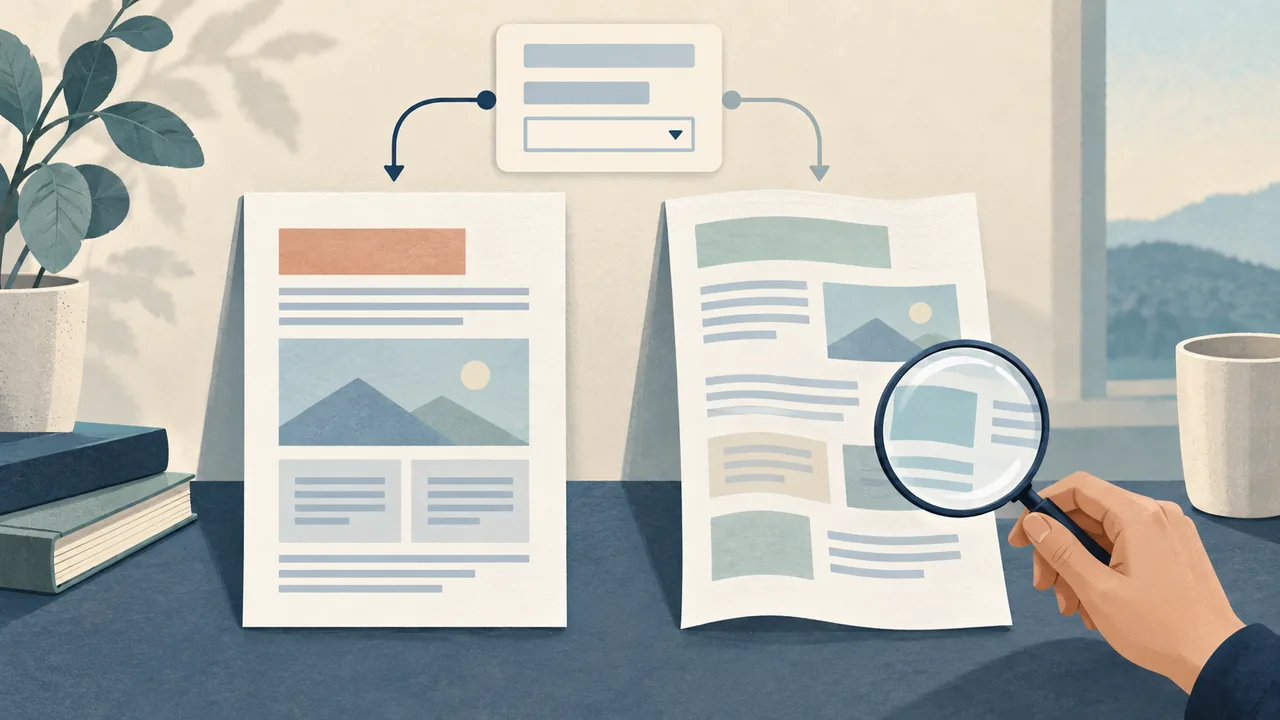
A resume can look polished and still contain text that behaves badly. A line may sit inside a text box. A heading may be part of an image. Two columns may be read in the wrong order. The page looks fine, but selecting its words tells a different story.
The best default is simple: treat a PDF that looks finished as unverified until you can select, copy and inspect its text. Then compare what you extracted with what you see on every page. If an application asks for a particular file type, follow that instruction instead of applying a universal PDF-or-Word rule.
This check catches basic problems. It does not reveal exactly how a particular employer’s application system will process your document. Greenhouse, for example, documents formatting problems that can interfere with parsing, including image-based files, columns, tables, text boxes and contact details placed in headers or footers. That vendor guidance describes Greenhouse Recruiting, not every system or every employer. Greenhouse’s documentation on unsuccessful resume parsing is a reason to inspect your file, not proof that a specific layout will fail elsewhere.
Harvard’s resume guidance likewise advises checking that formatting translates properly when converted to PDF. Harvard College’s resume guide supports the conversion check; the practical steps below turn that advice into a repeatable review.

The five-minute check, and what it can tell you
A fast PDF text check has two parts. First, confirm the words exist as selectable text and copy them out. Second, read that extracted text and compare it with the visible page. Selection alone is not enough: text can be selectable but come out scrambled, incomplete or in a confusing sequence.
You are checking for obvious defects such as:
- text that cannot be selected because the page is a flat image;
- missing or altered letters, symbols, punctuation or dates;
- contact information that was left out or moved to an unexpected place;
- section headings separated from the sections they label;
- bullets, dates or job entries appearing in an order that changes their meaning;
- content cut off at the bottom or edge of a page;
- a copied version that disagrees with the visual resume.
Step 1: Save the PDF you will actually submit
Check the exported file, not only the resume in an editor or browser preview. The final PDF is the object an application receives. A source document may be correct while the exported version has a clipped line, substituted character or unexpected page break.
- Export or download the resume as a PDF using the method you intend to submit.
- Save the file somewhere you can find it. Use a clear filename that identifies the document without adding unnecessary personal information, such as
Jordan-Lee-Resume.pdfif Jordan Lee is the candidate’s name. - Open that saved PDF in a viewer that supports text selection. A browser PDF viewer or a desktop PDF reader is usually sufficient for this basic check.
- Confirm that the page count is plausible and that the document opens without an error.
If the file opens as a single image, that may be intentional in some document workflows, but it is a poor default for a resume intended to be read as text. Try selecting a sentence. If you can only draw a rectangle around the whole page, the page may be image-based rather than text-based. Do not assume that because the letters look sharp, they are selectable words.
A PDF is a container; it does not tell you how its contents were created. It can contain selectable text, images, or both. A page can look like ordinary typed text while actually being one image. Conversely, an image such as a logo can sit beside selectable text. The selection test checks what a reader can access, not how the PDF was built.
If your editor offers a print-to-PDF option, inspect the resulting saved file after printing. A preview is not a substitute for opening the exported copy. Harvard advises checking the formatting after conversion to PDF, which is exactly why the exported document deserves its own review. Harvard College resume guidance.
Step 2: Select and copy the text
Start with one page. Drag across a short paragraph or a group of lines, copy it, and paste it into a plain-text field or document. Avoid pasting into another resume template, where its formatting can conceal ordering and spacing problems.
A basic plain-text editor is useful because it strips most visual styling. You want to see the text sequence, not a second version of the design. If you do not have a plain-text editor handy, paste into a blank email draft or another simple text field, but do not send it. Close the draft when you finish.
Check the following:
- Can you select individual words and lines?
- Does the text paste, or does nothing appear?
- Are words intact, or do letters vanish, repeat or appear in odd places?
- Do spaces separate words correctly?
- Do bullets become readable markers, or disappear in a way that makes entries hard to distinguish?
- Do accented letters, punctuation and symbols survive?
For example, the hypothetical phrase Data Analyst | Northfield Co. | 2022–2025 should not become D a t a A n a l y s t, DataAnalystNorthfieldCo.2022 2025, or a set of broken characters. Those are illustrative examples, not claims about a particular PDF viewer or resume. If you see something similar, inspect the source and export again, or choose a simpler layout.
Try at least one selection from each page. A two-page resume may have a clean first page and a broken second page if an element on that page was exported differently. Include the name and contact block, a heading, a normal body paragraph or bullet, and any special section that uses a different style.
If copying is disabled, do not conclude automatically that the PDF is corrupt. A document can have restrictions or viewer-specific behavior. But for an application resume, you still need a reliable way to confirm the text. Try another viewer, then check the source or export settings. If text remains inaccessible, consider generating a text-based PDF again from the original document rather than uploading an image-only file by default.
Step 3: Read the extracted text in order
Copied text is a rough test of reading order. Read it from the first character to the last without looking at the page. Ask whether a person who had only this text could identify your name, contact details, section headings and work history in a sensible sequence.
A sensible order is not always one exact format. A resume might begin with a name and contact line, then a summary, experience, education and skills. Another may put education first. The test is whether the sequence reflects the document you intended, not whether it matches one template.
Look for these warning signs:
- a heading appears after the bullets that belong under it;
- a date is detached from the role or education entry it describes;
- the right column appears before the left column, or line-by-line mixing makes sentences incoherent;
- the page footer or header interrupts a sentence in the middle;
- a second page’s first line is inserted before the first page’s last line;
- bullets from two separate roles alternate in the pasted text;
- text from a sidebar is inserted between words in a main paragraph;
- the same line appears twice;
- an important section does not appear at all.
Some extraction tools join lines differently from the layout. A paragraph may paste as one long line even when it looks fine on the page. That difference is not automatically a defect. Focus on whether words, relationships and sequence remain understandable. But do not excuse a result that makes a date look attached to the wrong employer or merges two distinct entries.
Hypothetical example: two columns
Imagine a hypothetical resume with a left column for experience and a right column for skills. On screen, each column is tidy. After copying, the text reads:
Product Designer
Figma, prototyping, accessibility
Northfield Co., 2022–2025
Research and interface work
That order may be understandable, but it does not preserve the intended grouping. A reader may not know which skills belong to which section or whether the role and company are connected. The example is invented to illustrate a layout risk; it does not describe a real candidate, parsing test or employer result.
If the extracted order is confusing, first simplify the layout: place sections in a clear vertical sequence, keep heading and body content together, and move essential contact information into the main page area rather than a header or footer. Greenhouse lists columns, headers, footers, text boxes and complex tables among formatting issues that may lead to incomplete interpretation in its system. That is a specific vendor’s warning, not a universal ban on every such element. Greenhouse’s support guidance provides the underlying examples.
Step 4: Verify contact information and the name
Treat the contact block as essential document content, not decoration. Confirm the name, email address, phone number if included, location if included, and any professional profile or portfolio link you intend to share.
Check the visible page and the extracted text separately. A contact line may be visible but absent from copy-and-paste because it was placed in a text box or embedded in an image. It may also be present in extracted text but visually hidden behind another element or clipped off the page.
Verify each character carefully. An email address can be wrong by one letter. A phone number can lose a digit. A link can break at a line wrap. Copy the email or web address from the PDF into a browser address field or a blank message draft if you need to check its characters, but do not submit or send anything as part of this inspection.
Look for these specific mistakes:
- a name split into individual letters or with spaces inserted between characters;
- a missing dot, hyphen, accent or underscore in an email address;
- contact details showing only on page one when they need to be available on later pages;
- a profile link broken across two lines in a way that changes its target;
- contact details placed in a decorative band that is not selectable;
- accidental inclusion of an outdated email address or phone number.
Greenhouse’s documentation notes that names and contact information placed in a header, footer or text box can be among the formatting issues affecting parsing in Greenhouse Recruiting. This does not establish how any other system will behave, but it gives a practical reason to keep essential details in a clear, ordinary text area. Greenhouse Support.
Do not add personal details simply to satisfy this check. Verify only the information you choose to include and that the employer requests or expects. The point is accuracy, not a longer contact block.
Step 5: Check headings and section boundaries
Headings tell the reader where one kind of information ends and another begins. In the PDF, confirm that a heading is visible, correctly spelled and close to the content it labels. In extracted text, confirm it appears before that content.
Review every section heading, including less prominent ones such as Projects, Certifications, Volunteer Experience, Languages or Publications. A heading that disappears or lands at the end of a prior section can make the copied document hard to follow.
Check for a consistent hierarchy. If Experience is a main section and Research Assistant is a role, the text should not make both appear indistinguishable. Visual size and weight help people scan, but the extracted sequence should still provide enough context to tell the sections apart.
Hypothetical example: a heading that arrives late
Suppose the visible PDF shows this:
EXPERIENCE
Project Coordinator, Northfield Co. | 2022–2025
Coordinated schedules and prepared weekly status updates.
But the copied text reads:
Project Coordinator, Northfield Co. | 2022–2025
Coordinated schedules and prepared weekly status updates.
EXPERIENCE
The words are all present. The order is not. The heading no longer introduces the role. This is a hypothetical text-order example, not a real test result. Move the heading into the same text flow as the section, simplify the design, export again and repeat the check.
Now check adjacent sections. Does a skills list get merged into the last work-history bullet? Does Education appear between a role title and its dates? Does the first line of a page look like a continuation of the prior section when it should begin a new one? These problems often become visible only when you inspect both the pasted text and the page itself.
Do not rely on color alone to make a heading recognizable. Color can support the design, but a clear label and sensible placement do more practical work. If a heading is purely decorative, consider whether a plain reader could still understand the structure when the decoration disappears.
Step 6: Compare extracted text with every visible page
Read the copied text while viewing the PDF, page by page. You are looking for agreement: each meaningful phrase in the visible resume should be present in the extracted version, and each extracted phrase should correspond to content you meant to include.
Use this sequence:
- Start at the top of page one. Match the name and contact details in the text to the visible lines.
- Move section by section. Match each heading to its bullets, descriptions, dates and organizations.
- Check the end of each page. Make sure no bullet is cut off, stranded or continued in a way that hides its meaning.
- Continue through the final page, including any footer, project section, education details or references you decided to include.
- Check for text that appears in the copied version but not visibly on the page. It may be hidden, duplicated or left over from editing.
- Repeat on the final saved file if you make a change and export a new PDF.
The last instruction matters. A corrected source file does not correct the PDF already sitting in an upload folder. Export again, open the new copy and repeat the tests that found the original problem.
Compare meaning, not just exact line breaks. A copied paragraph may not preserve the visual wrap, and that is normal. A missing bullet, a duplicated job title or a misplaced date is different. Those can alter how the resume reads.
What to inspect visually
Text copying will not catch every visual defect. Zoom in enough to inspect small details, then view the page at a normal reading size. Check:
- whether any line is clipped by the page edge or overlaps another element;
- whether text is too small to read comfortably at ordinary zoom;
- whether bullet marks and indenting remain consistent;
- whether a long role title collides with a date or location;
- whether a link is visibly broken across lines;
- whether a page has an awkward blank area caused by an unintended break;
- whether any text sits on a background with poor contrast;
- whether section spacing makes it clear where each entry begins and ends.

Step 7: Check reading order when the design uses columns or sidebars
A one-column resume is the easiest layout to inspect because the page usually has a straightforward top-to-bottom sequence. A two-column design can still be visually readable, but it deserves closer checking. The order in which text is copied may not follow the order your eyes use.
If you use columns, test representative passages from both columns. Copy a block that starts near the top, one from the middle and one near the bottom. Then copy the full page if your viewer allows it. A single selection can behave differently from selecting several blocks, so test the whole reading sequence as well as local pieces.
Ask three questions:
- Does the copied text preserve each section’s internal order?
- Does it keep each heading with the correct content?
- Does it make the sequence of the entire document understandable without relying on visual position?
If the answer to the third question is no, the safest practical fix is usually to simplify the layout. Put the most important material in a clear, continuous order. A decorative sidebar that disrupts the main reading sequence is not earning its space.
Step 8: Inspect dates, bullets, punctuation and symbols
Small characters can carry large meaning. A dash can separate a date range. A bullet can separate accomplishments. A slash may distinguish two credentials. If one disappears or changes, the extracted text can become ambiguous.
Look especially at:
- date ranges and date separators;
- bullets and numbered items;
- accented characters in names or place names;
- apostrophes and quotation marks;
- currency symbols, percentages and other special characters you actually use;
- slashes in degrees or qualifications;
- hyphens in job titles, product names or URLs.
For each one, ask whether the visible version and copied version agree. A date range shown as 2022–2025 might paste as 2022 2025; that may still be understandable, but it is a sign to check how the rest of the document behaves. If an accomplishment includes a number, verify that every digit survives. Do not add numbers just to make a bullet sound stronger.
The easiest repair is often to replace an unusual decorative glyph with a common character, then export and inspect again. Keep the original wording truthful. This review concerns document rendering, not permission to rewrite achievements or insert claims you cannot support.
Step 9: Check page breaks and continuation
A good page break should not separate a heading from the material it introduces or leave a single orphaned line that looks detached. The text extraction may reveal a break less clearly than the visual page, so inspect both.
At each page boundary, check:
- whether the last line on one page is complete;
- whether a heading at the bottom of a page has at least some relevant content with it;
- whether a job entry is split in a way that obscures the relationship between role, organization and dates;
- whether a bullet continues on the next page without a confusing gap;
- whether the next page starts with the continuation or section you intended;
- whether page numbers, if used, appear correctly and do not enter the middle of copied text.
A line continuing on a new page is not automatically wrong. The issue is whether the reader can tell what it belongs to. If the entry’s key context is on the prior page and the continuation is easy to identify, that may be acceptable. If the second page begins with a floating phrase and no clue where it came from, adjust the break.
After editing page breaks, repeat the text check. Moving an element can change the extraction order even when the visible page improves.
What different results mean
Use the test result to choose a next step. Do not overreact to harmless line-wrap differences, and do not dismiss missing or scrambled information as a cosmetic quirk.
| What you find | What it suggests | Best next step |
|---|---|---|
| You can select words, and the copied text is complete and understandable | The basic text check passed in that viewer | Compare every page visually and follow the application’s file instructions |
| The page looks normal, but nothing can be selected | The page may be image-based or selection may be restricted | Try another viewer; if text remains inaccessible, re-export from the source as a text-based document |
| Words are split, missing or replaced by symbols | The export, font or character handling may be at fault | Inspect the source text and font choices, then export a fresh copy and retest |
| Headings and content appear in the wrong sequence | The text flow may not match the visual layout | Simplify columns, boxes or sidebars; keep section labels close to their content |
| Contact details appear on the page but not in copied text | The details may be in a non-text element or unusual location | Put essential details in the main text area and verify the new PDF |
| The copied text looks fine but the visual page is clipped or crowded | Text extraction did not catch the layout problem | Fix the visual page break, overlap or spacing and inspect the exported copy again |
| The application specifies DOCX, PDF or another format | The employer has set a file requirement | Submit the requested type unless the application provides a clear alternative |
These are troubleshooting directions, not diagnoses of a particular software defect. A viewer may affect copying. A document may have restrictions. A PDF may mix images and text. Retest after changing viewers or re-exporting before deciding the content itself is broken.
Fix the source, not just the symptom
When the copy test fails, make the correction in the source document or resume editor, then create a new PDF. Do not try to hide a broken layout by copying the text into a second file and uploading that without checking whether the visual resume still communicates what you intend.
A practical repair order is:
- Confirm the source wording. Check the original name, contact details, dates, headings and bullets for typos.
- Simplify any complex structure. Remove unnecessary text boxes, overlapping elements, sidebars or intricate tables if they interfere with a readable sequence.
- Keep essential text in normal page content. Avoid placing the only copy of a name or contact detail in a header, footer, image or decorative shape.
- Check special characters and fonts. If a character changes during copying, try a standard font or a simpler character where that preserves the intended meaning.
- Export a fresh PDF. Save it under a distinguishable filename or replace the old copy deliberately so you do not upload the wrong version.
- Open and repeat the failed test. Check both visual appearance and copied text on the repaired file.
- Remove stale copies from your upload selection. If old and new files have similar names, verify the one you choose before attaching it.
PDF or Word: follow the application’s instruction
The best file format is the one the application asks for. If the form says PDF, upload PDF. If it requests DOCX, use DOCX. If it accepts a specific list of types, choose one from that list. Do not substitute your preference for a stated requirement.
A PDF is useful when the application requests it or accepts it and you have checked the exported pages. It is designed to preserve the appearance of a document across common viewing contexts, but appearance is not the same as guaranteed processing. Harvard advises checking that formatting translates properly to PDF, and Greenhouse documents that some resume formatting can interfere with parsing in its product. Together, those sources support a cautious practice: inspect the actual export and follow the employer’s file directions. They do not support a universal claim that PDF is always best or that Word is always safer. Harvard’s guide and Greenhouse’s parsing guidance.
When the application offers no preference but accepts both, choose the format you can produce and verify cleanly. A text-based PDF that passes the visual and selection checks is a reasonable choice. A DOCX that the employer requests is the right choice even if you prefer the PDF’s appearance. If the system converts documents after upload, follow any preview or correction step it provides and review the result when possible.
Some applications let you upload a resume and then ask you to review fields such as name, employer, dates or education. Check those fields yourself. A form that auto-fills is not proof that every detail is correct. Correct mistakes in the form if the interface allows it, and ensure the uploaded document itself remains accurate.
What a text check cannot tell you
A successful copy test cannot predict a particular employer’s processing result. It cannot show you which software the employer uses, what settings are enabled, how the employer’s workflow handles a document, or whether a person will review the file in a particular way.
It also cannot establish that a resume is a good match for a role, that a candidate will pass screening, or that an employer will accept the application. Those are different questions. This article offers a document inspection procedure, not a system compatibility test or hiring guarantee.
Treat the result as one layer of quality control. It answers: “Can I select and copy this text, and does it still make sense?” It does not answer: “Will every system read this correctly?” Keep that distinction clear.
A complete sample review
The following walkthrough uses a clearly hypothetical resume for a fictional person. It contains no real candidate history, test results or employer outcome.
Suppose Jordan Lee has a one-page resume with a name at the top, a contact line, an Experience section and an Education section. The PDF looks tidy in a browser viewer. Before applying, Jordan saves the PDF and selects the name and contact line.
First check: selection. The name and email highlight as individual characters. That is encouraging, but not a pass by itself. Jordan copies them into a plain-text document and confirms that Jordan Lee and the intended email address remain intact.
Second check: section order. Jordan copies all text from page one. The pasted text starts with the name and contact line, then shows each heading before its entries. Dates remain close to the relevant role. This means the sequence is readable in that viewer. It says nothing yet about another system’s processing.
Third check: visual comparison. Jordan returns to the PDF and matches each copied section against the visible page. One final bullet appears on the page but is missing from the copied text. Jordan checks the source. The bullet sits inside a text box that overlapped a decorative shape during export. Jordan moves it into the main text flow and exports a new PDF.
Fourth check: retest. Jordan opens the new file, copies the affected section, and confirms that the bullet appears in the expected order. Then Jordan reviews the page at ordinary zoom to make sure the move did not create a collision or awkward break.
Fifth check: application rule. The hypothetical application asks for a PDF, so Jordan uploads the verified PDF. If the same application had requested DOCX, Jordan would submit DOCX instead. The format instruction would override a general preference.
Avoid these common false conclusions
“I can select one word, so the whole resume is fine.”
One selected word proves only that one portion can be selected. A logo, a text box, an image or a different font on another page can behave differently. Test representative sections across the entire PDF and inspect the full copied sequence.
“The text pasted, so the reading order must be right.”
Text can all be present but arrive in a poor order. Check whether headings precede their sections and whether roles, dates and bullets stay connected. Completeness and sequence are separate checks.
“The PDF looks professional, so the text is readable.”
Visual appearance and selectable text are different properties. A polished image of a page can still contain no selectable words. Run both tests.
“The copied text is awkward, so every system will reject the resume.”
That conclusion is too strong. The test reveals a problem worth correcting; it does not tell you what every employer’s system will do. Simplify the document when the reading order is genuinely unclear, then inspect the new version.
“A single-column layout guarantees success.”
It does not. A single-column PDF can still lose characters, hide text or display a bad page break. Use simplicity to reduce avoidable complexity, not as a promise of processing performance.
“PDF is always the safest format.”
Not when an application requests another type. Follow the explicit instruction. When no instruction exists, choose a format you can produce and verify well.
“An automatic field fill means the resume was read correctly.”
A form may fill some fields and miss others. If the application displays imported details, inspect them. Greenhouse documents partial parsing and the need for manual correction and verification in some cases. Greenhouse Support.
A short checklist before you click Upload
Use this checklist on the final version, not an earlier draft:
- [ ] The PDF opens and the page count is expected.
- [ ] Text on every page can be selected.
- [ ] The copied text includes the name and intended contact details.
- [ ] Headings appear before the content they label.
- [ ] Dates, organizations, roles and bullets remain connected.
- [ ] The full text reads in a sensible order from page one to the last page.
- [ ] Important punctuation, accents and symbols remain intact.
- [ ] The visible pages contain no clipped lines, overlaps or unreadably small text.
- [ ] Every visible section matches the copied text, with no missing or unexpected content.
- [ ] The selected file type matches the application’s instruction.
- [ ] The file attached to the application is the same file you just inspected.
If one item fails, pause and fix it when you can. If the application has a deadline or a required format, prioritize following its instructions and correct the document as practically as possible. Do not claim a clean check proves acceptance.
FAQs
How do I know whether my resume PDF has readable text?
Open the saved PDF, select a few words on each page, copy them and paste into a plain-text document. If the words appear intact and in a sensible order, the basic selection-and-copy check passed in that viewer. Compare the result with the visible PDF to catch omissions, misplaced headings and visual defects.
What if I can highlight the page but not individual words?
The page may be an image rather than selectable text, or the viewer may behave differently from another reader. Try a second PDF viewer. If you still cannot select text, re-export from the original source as a text-based PDF if the workflow allows. Then inspect the new file rather than assuming it is fixed.
Does selectable text mean an ATS can read my resume?
No. Selectable text is a useful basic check, not an ATS test. It does not predict how a particular employer’s system will process the PDF or whether the employer will accept it. Greenhouse’s documentation describes its own product’s possible parsing failures and formatting issues; it is not a guarantee about other systems. Greenhouse Support.
Should I use a one-column resume?
A one-column layout is the easiest default to inspect because its intended reading sequence is straightforward. Use a more complex layout only when it remains clear in both the visible document and the copied text. No layout alone guarantees parsing or acceptance.
Should I submit a PDF or a Word document?
Submit the type the application requests. If it accepts either and gives no preference, choose the file you can verify most confidently. Do not override a clear instruction with a universal rule from a general article.
Do I need special software to check the text?
Usually not for the basic check. A PDF viewer with text selection and a plain-text field or editor are enough to test copying and sequence. A second viewer can help distinguish document behavior from a viewer-specific issue. This method is not a substitute for specialized accessibility or document inspection tools when those are required.
Should I upload my resume to a random online checker?
Not for this basic test. You can select and copy text locally in a PDF viewer without sending the resume to another service. Resumes contain personal information, so avoid uploading them to a third-party tool unless you understand its handling of the file and have a reason to use it.
How often should I repeat the check?
Repeat it whenever you export a new version, change the layout, switch editors, or make a change that affects pagination or text placement. A source document can be correct while a later export is not. Inspect the exact file you plan to attach.
The safest final habit
Do not trust appearance alone. Open the final PDF, select and copy its text, inspect the reading order, verify the contact block and headings, then compare the copied version with every page. If something is missing or misplaced, fix the source and repeat the check.
If you are still choosing a design, browse the resume template gallery. If you already have a resume to edit, use the free resume builder, then inspect the exported PDF before applying.